
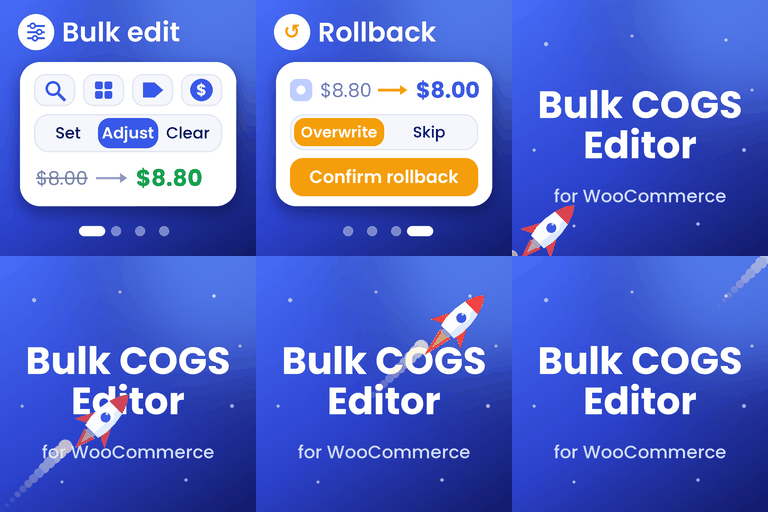
Mô tả
Bulk COGS Editor for WooCommerce is a fast and the most powerful bulk editing solution for managing product costs with WooCommerce’s native Cost of Goods Sold (COGS) feature. Quickly edit product cost values for large catalogs by relevant filtering criteria, preview proposed changes, and apply updates through background processing with live progress and cancellation.
Import product costs from CSV or Excel (XLSX), export cost data to CSV, and review operation history or roll back eligible changes while original values are retained. Product prices are not changed.
There is nothing extra to set up beyond enabling Cost of Goods Sold in WooCommerce. For setup instructions and a step-by-step guide, see the Bulk COGS Editor documentation.
Watch the plugin in action
Why use Bulk COGS Editor?
- Save time on supplier price changes. Update a category, brand, or selected group instead of editing products one by one.
- Work from your spreadsheet. Bring supplier costs into your catalog or prepare updates from exported product data.
- Make informed changes. Check the effect on product costs before committing an update.
- Keep a record of your work. Identify past operations and decide whether eligible changes need to be reversed.
How it works
- Open Products > Bulk COGS Editor and choose Bulk edit.
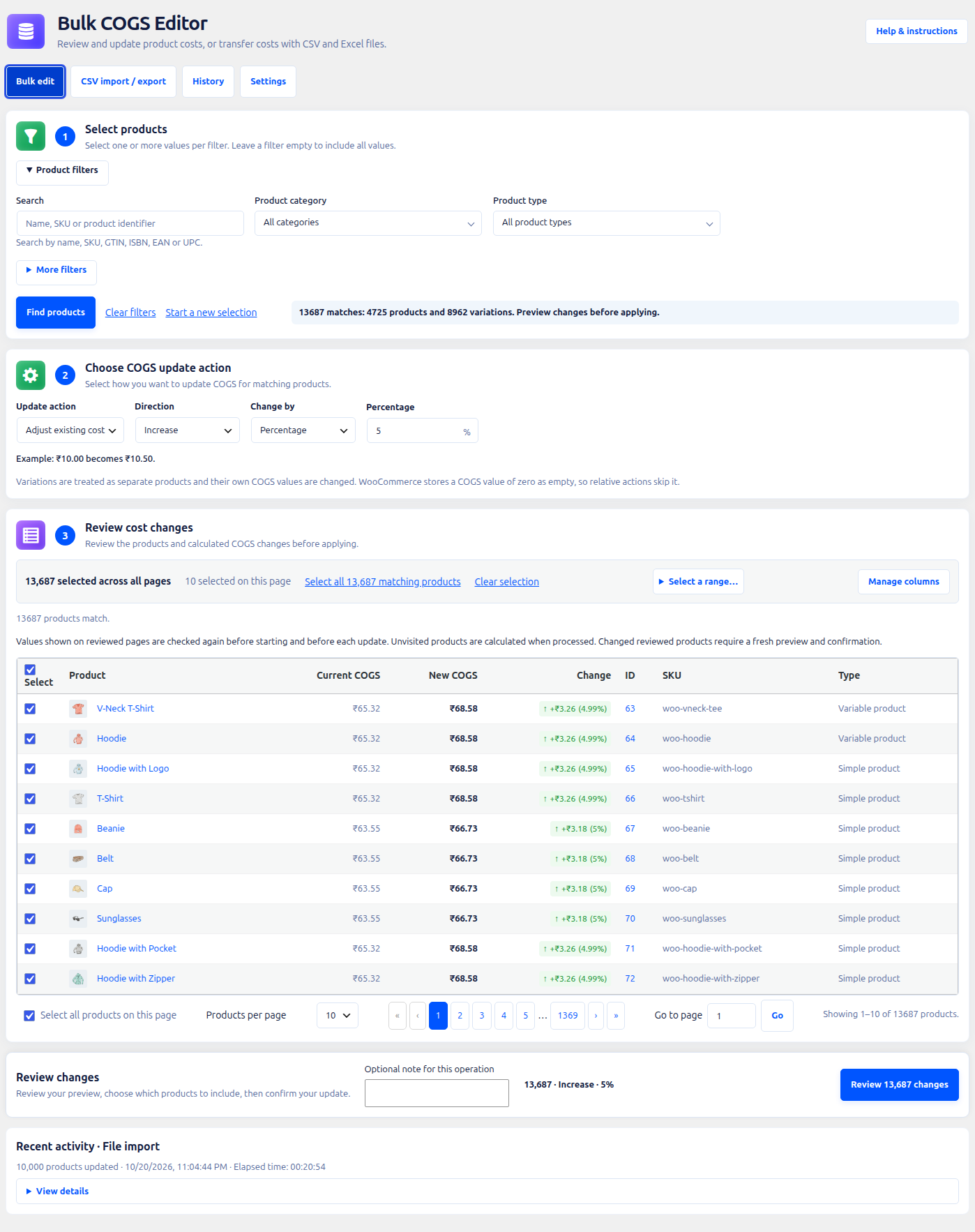
- Choose your filters and find the matching products.
- Choose a cost action, review the preview, and select the products to update.
- Review and confirm the update, then follow its results in the editor.
Features
- Filter products and variations by title, SKU, category, brand, product type, stock status, current price, or current COGS.
- Set an exact cost, increase or decrease it by a fixed amount or percentage, or clear it.
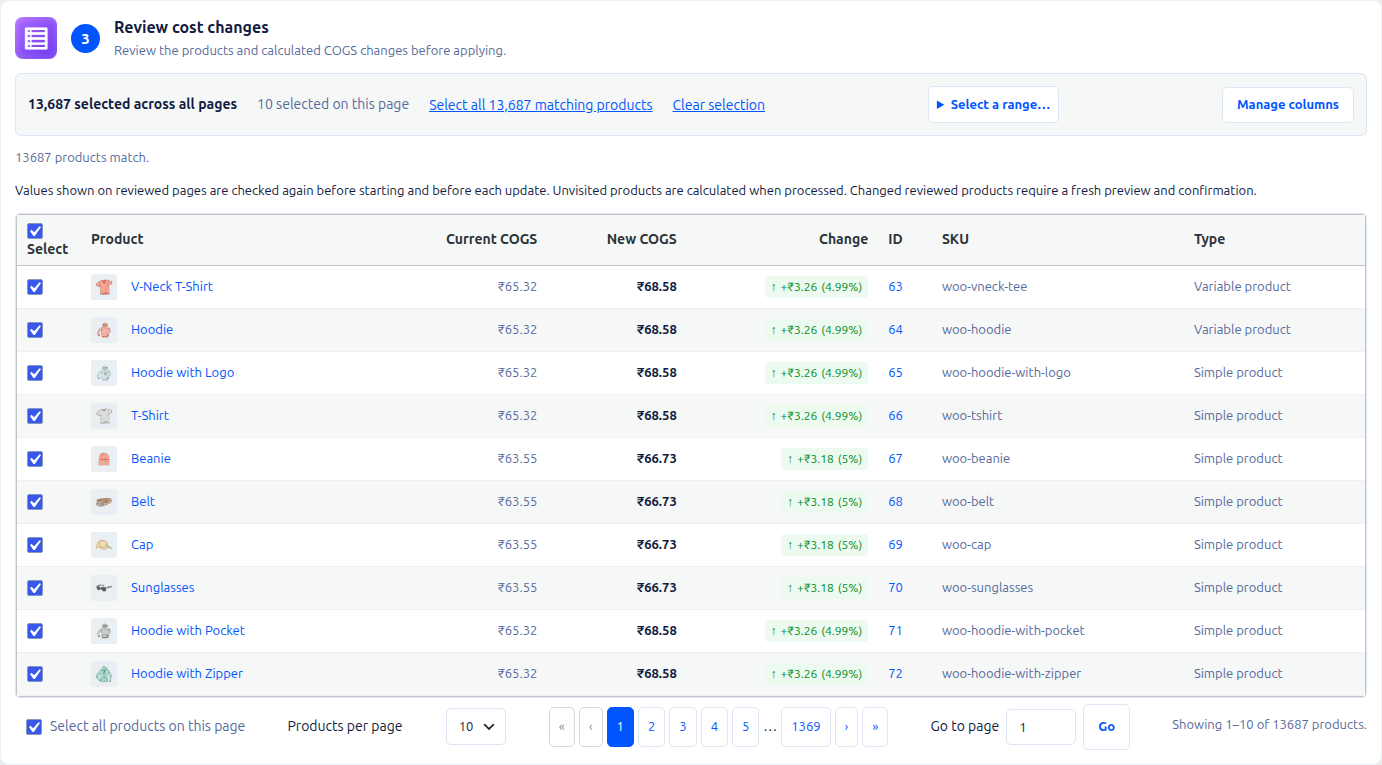
- Preview product images alongside current COGS, proposed COGS, and the exact difference, with pagination and product selection.
- Process updates through Action Scheduler, WooCommerce’s background task system, with progress and cancellation controls.
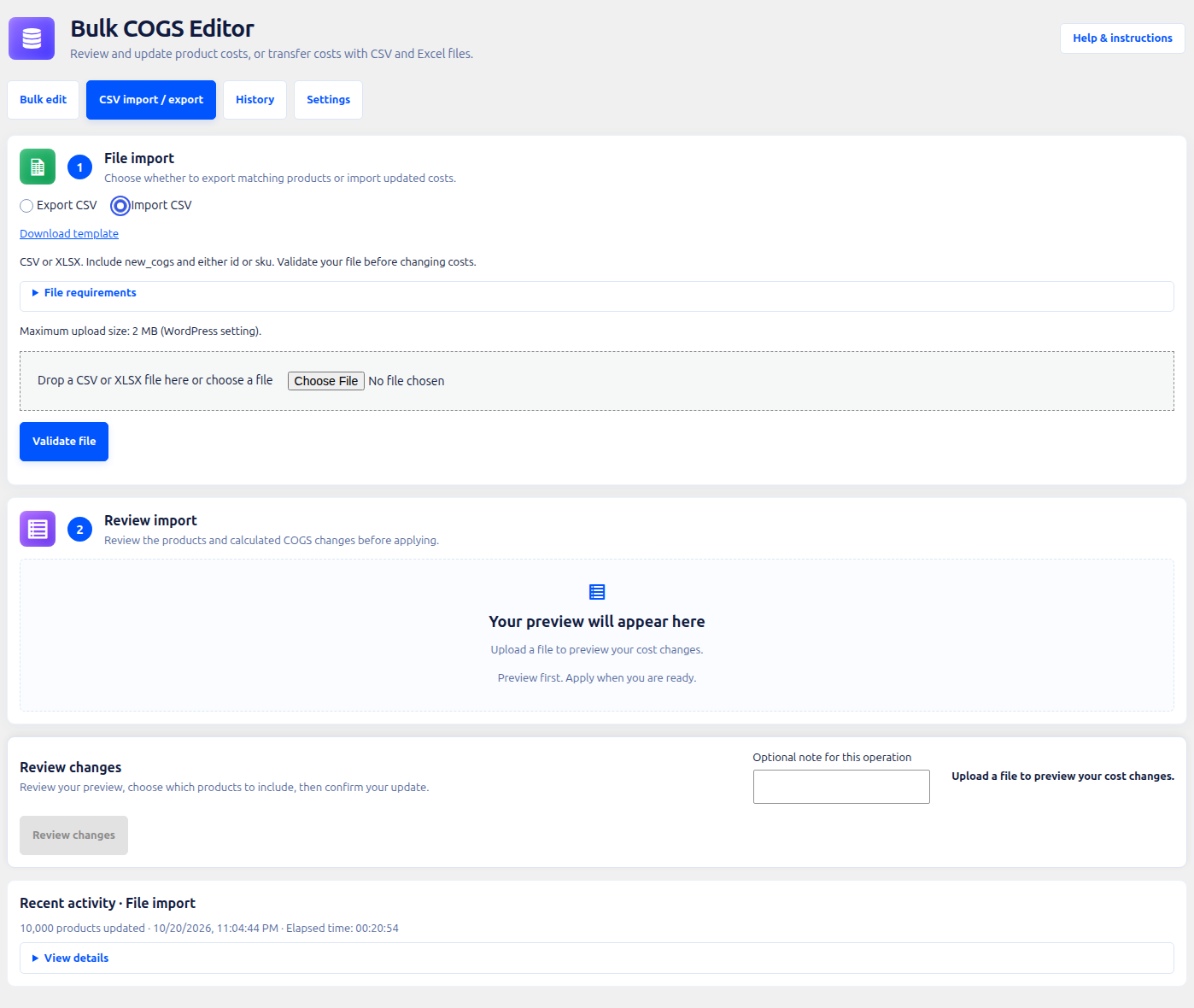
- Import CSV or XLSX costs using product IDs or SKUs, export matching costs to CSV, and download validation and update reports.
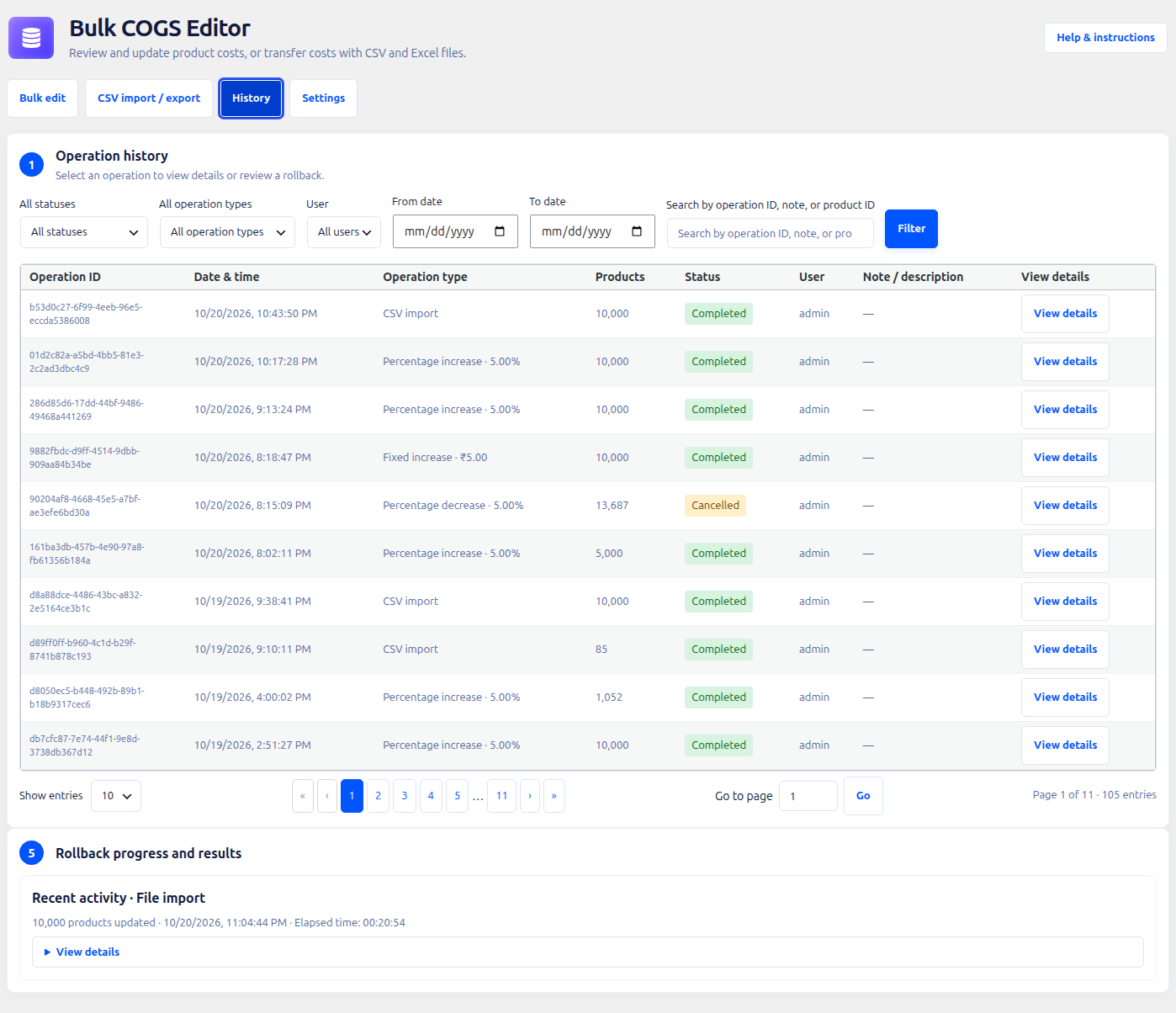
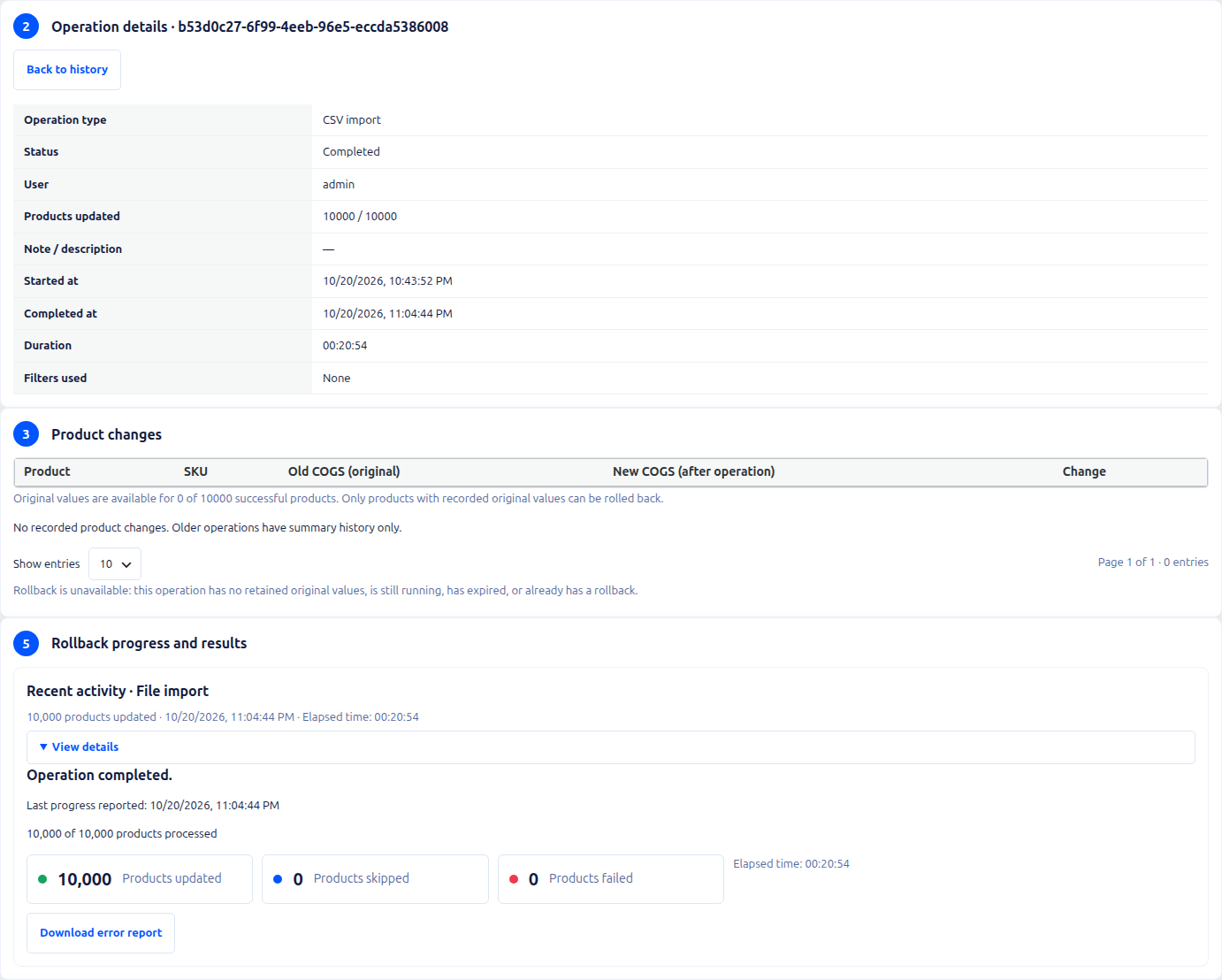
- Inspect recorded outcomes and retained original costs in History, with rollback review and confirmation.
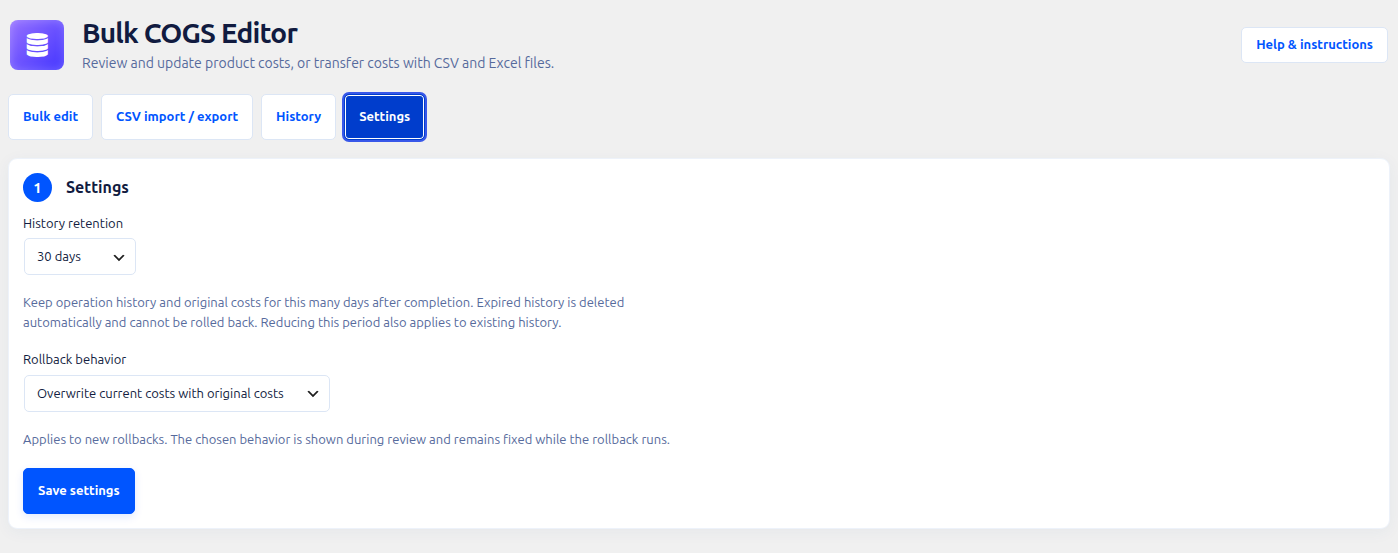
- Configure history retention and choose whether rollback overwrites later cost edits or skips changed products.
- Recover a stuck editor operation through a confirmed force-clear action in Settings when normal cancellation does not work.
Performance for large catalogs
Bulk processing reduces repeated product searches and counts. It loads reusable product data in batches and groups cache cleanup to reduce repeated work.
The plugin saves progress checkpoints and each product’s result to support recovery after interruptions. Costs are saved through WooCommerce’s product APIs, preserving its hooks and cache handling.
In the developer’s reported benchmark results, processing approximately 10,000 products improved from 50–60 minutes initially to 40–42 minutes, then 25–28 minutes.
The latest reported WP-CLI run updated 10,000 products in 15 minutes 24 seconds, with zero skipped and zero failed — about 69–74% less elapsed time than the initial implementation.
The completion screenshot records the editor operation’s elapsed time of 00:15:24. End-to-end CLI runtime was not measured separately. This is a single benchmark run, not a guaranteed completion time.
Actual performance depends on hosting, database speed, product types, installed extensions, and background worker availability. Repeated runs and larger catalogs still need benchmarking.
Import and export product costs with CSV or Excel
CSV and XLSX import
Choose CSV mode and click Import on the Bulk COGS Editor page. Upload a UTF-8 CSV or XLSX file.
The upload limit follows WordPress’s maximum upload size, shown beside the file field. The plugin has no separate file-size or row-count limit. Hosting upload, memory, storage and execution limits still apply.
Sample CSV
Exported CSV files include a blank new_cogs column. Fill it with new costs and import the file.
`csv
id,sku,new_cogs
123,PRODUCT-001,25.50
124,PRODUCT-002,40.00
`
Required headers are new_cogs and id or sku. Older files can use cogs if new_cogs is missing.
- Use either ID or SKU to identify products.
- If both are provided, they must match.
- Use decimal values without currency symbols.
- Extra decimal places are rounded to WooCommerce’s configured number of decimals before preview. With two decimal places,
12.3456becomes12.35. WooCommerce treats a value that rounds to zero as empty. - Blank costs are excluded and listed as validation errors; they do not clear existing costs.
- Duplicate product rows are excluded and listed in the error report.
XLSX imports read raw values from the first worksheet. Replace formulas with values and store SKUs as text to preserve leading zeros.
XLSX requires PHP’s ZIP, XMLReader and DOM extensions. Exports use CSV format.
Preview and apply
Preview preparation runs in background batches without changing products. Progress is saved between batches, and you can close the page and return to check it. Preparation time varies with file size, product mix, hosting, and background worker availability.
When ready, review products, download validation errors if needed, select products, review the selected changes, and confirm the update. Preparation can be cancelled separately from an applied update. Completed imports with no skipped, failed, or unprocessed products have no update error report to download.
Original uploads are deleted after preparation. Staged previews and reports expire after about 24 hours. Retention extends while an applied update is active.
History and retention
Operation history and original cost records follow the retention period set in Settings. See the retention FAQ below. Daily cleanup preserves active operations and data needed for reports.
The plugin also keeps records that prevent the same preview from being applied more than once, including simultaneous Apply requests. These records follow the configured retention period and are removed only when they are no longer needed.
Run background updates with WP-CLI
Use Action Scheduler’s CLI runner for import preview preparation and confirmed updates while the editor continues to show progress and accept cancellations. See the Action Scheduler documentation for more information.
Import preview workers must run on the upload server under the same operating-system account as PHP. This lets them read the private temporary uploads.
If your shell uses a different account, ask your host to run the command under PHP’s account. Ordinary product updates do not need the uploaded file.
During preparation, worker logs show the stage, checked row count, and batch size. Total and remaining row counts become available after reading finishes.
After uploading an import for preview or confirming an update in the editor, run this command from your WordPress directory:
wp action-scheduler run --group=bulk-cogs-editor --batch-size=1 --batches=0
Check the queue with:
wp action-scheduler status --group=bulk-cogs-editor
The status report covers the site’s full Action Scheduler queue.
The run command processes due plugin actions for all users and exits when none remain. It does not wait for scheduled retries. --batch-size counts scheduled actions, not products.
If another worker owns the available batch, wait for it to finish or run:
wp action-scheduler run --group=bulk-cogs-editor --batch-size=1 --batches=0 --force
The plugin prevents two workers from changing the same operation simultaneously. Using --force can still increase server load.
Keep the normal background runner enabled for retries. If your host runs the command on a schedule, use a process lock to prevent overlapping command runs.
For performance checks, prefix the command with time. WooCommerce > Status > Logs under source dkbce records worker timing and runner details.
Requirements
- WordPress 6.7 or later
- WooCommerce 10.3 or later
- PHP 7.4 or later
- WooCommerce Cost of Goods Sold feature enabled in WooCommerce settings
If Cost of Goods Sold is unavailable or disabled, the editor is turned off and explains what is needed.
Privacy
Bulk COGS Editor for WooCommerce does not send product, customer, order, or store data to external services. All WooCommerce COGS calculations and updates are performed locally on your WordPress/WooCommerce installation.
Developer resources
Bulk COGS Editor for WooCommerce is open-source software and is made to be extended. The source code is available in the GitHub repository.
Connect with the developer
Ảnh màn hình


Cài đặt
- Upload the plugin files to the
/wp-content/plugins/bulk-cogs-editor-for-woocommercedirectory, or install the plugin through the WordPress Plugins screen. - Activate the plugin through the Plugins screen in WordPress.
- Make sure the Cost of Goods Sold feature is enabled in WooCommerce settings.
- Go to Products > Bulk COGS Editor in the WordPress admin menu.
- Filter your products, choose an action, preview the changes, then confirm to apply them.
Hỏi đáp
-
How do I bulk update Cost of Goods Sold (COGS) in WooCommerce?
-
Use Bulk edit for one cost action across a selected group. Use CSV import when individual products need different values. The steps for both workflows appear above.
-
Can I import WooCommerce product costs from CSV or Excel?
-
Yes. Both formats support product IDs or SKUs. See the import section above for required columns, file requirements, and validation steps.
-
Can I export product costs and import updated values?
-
Yes. Keep the exported product IDs or SKUs unchanged when preparing your updates. Export produces CSV even if a previous import used XLSX; see the sample CSV above.
-
Does this plugin work with WooCommerce’s native Cost of Goods Sold feature?
-
Yes. It requires WooCommerce 10.3 or later with native COGS enabled. If the feature is disabled or unavailable, the editor explains what is required.
-
Can I increase all product costs by a percentage?
-
Yes. The percentage action applies to your selected products. Products without a saved cost are skipped; use Set exact cost to assign their initial values.
-
Does preparing a preview change product costs?
-
No. Finding products or validating an import only prepares a preview. Product costs change after you explicitly confirm the update.
-
Do I need to read the documentation or watch the video before using the editor?
-
No. The editor includes task-specific Help and instructions, field guidance, and cost examples. Use the documentation or video when you need more detail.
-
Where can I see the result of my last update?
-
Expand Recent activity for the latest completed operation, including updated counts, completion time, elapsed time, and highlighted problems. Open History to inspect earlier operations.
-
Can I update the same products again?
-
When a bulk update finishes in the open editor, its product selection is reused with current costs for another preview, even if those costs no longer match the original filters. Edit filters to narrow that selection. Choose Reset filters to start a new selection.
-
Can I use other tabs while an update is running?
-
Yes. You can move between Bulk edit, CSV import / export, History, and Settings while a background operation runs. Controls that could conflict with it stay disabled until the operation finishes.
-
How do I stop an update or rollback?
-
Choose Stop remaining updates, or Cancel rollback for a rollback, and confirm in the editor dialog. Cancel or Escape closes the dialog without requesting cancellation. Saved cost changes remain, and the active worker may take a short time to stop. Import preview preparation has its own Cancel preparation control with a confirmation dialog. Cancelling preparation does not change product costs; upload the file again to prepare another preview.
-
What should I do if an operation is stuck?
-
Try normal cancellation first. If it does not work, a WooCommerce manager can open Settings, choose Force clear current operation, review the warning, and confirm.
This resets the current user’s editor operation and import preview references and requests cancellation. It does not restore costs or immediately stop an active worker. Saved changes, operation history, and retained rollback data are kept. Check History before starting another update.
-
Can I roll back a completed update?
-
Open History, select View details, and choose Review rollback when original costs are retained. Compare current and original values, then choose Confirm rollback.
Expired operations and older records that contain only summary results cannot be rolled back. Restoring changes saved before cancellation also requires a separate rollback.
-
What if product cost changed after the original update?
-
Choose the skip-changed policy in Settings to preserve later cost edits. Choose overwrite to restore recorded original costs instead. The policy shown during review remains fixed for that rollback attempt.
If a rollback is cancelled or does not finish, review a new attempt for the remaining products. Already restored products are excluded, even if edited again later.
-
How long is operation history retained?
-
Choose 30 days, 90 days, or a custom period of 1 to 36,500 days in Settings. The default is 30 days.
Shortening retention also affects existing history. Extending it cannot recover original costs already deleted by scheduled cleanup.
-
How does the plugin handle variable products and variations?
-
Variations are treated as individual product records. You can filter and update COGS on variations directly, and variable parent products will not be changed when only variations are selected and updated.
-
How does “Select all” work in the filter dropdowns?
-
Each category, product type, stock status, and available brand dropdown has a “Select all” checkbox. Check it to select every option, or uncheck it to clear the selection. You can still select individual options. An empty filter does not restrict the results.
-
Why can selecting all categories return fewer matches than leaving the category filter empty?
-
Selecting all categories requires products to have a category assignment. Variations match the categories assigned to their parent product. Products without categories, and variations whose parent has no categories, are excluded. Use the “All categories” link in the dropdown or clear the category selection to remove this restriction.
-
Are child categories included?
-
Yes. The dropdown lists both parent and child categories in a flat list. Selecting a parent category also matches products in its child categories and variations of those products.
-
Does the matching total include variations?
-
Yes. The result message shows the total followed by separate product and variation counts, for example: “950 matches: 300 products and 650 variations.” The product count excludes variation records. The counts cover all matching results, not just the current preview page.
-
What happens to products without a COGS value during relative adjustments?
-
Percentage and fixed-amount adjustments skip products without a saved COGS value. Use Set exact cost to assign one. WooCommerce treats zero as empty; use Clear cost to remove a saved value.
-
How are large catalogs processed?
-
Updates run in background batches, so you can close the browser and return to the editor for progress. Completion depends on hosting and background worker availability. Cancelling keeps changes already saved; it does not undo them.
-
Does this plugin modify product prices?
-
No. The plugin only modifies the WooCommerce Cost of Goods Sold value.
-
Where can I give feedback?
-
If you have a suggestion to improve the plugin, please open an issue on GitHub or use the support forum on WordPress.org.
Đánh giá
Không có đánh giá nào cho plugin này.
Người đóng góp & Lập trình viên
“Bulk COGS Editor for WooCommerce” là mã nguồn mở. Những người sau đã đóng góp vào plugin này.
Những người đóng góp
Dịch “Bulk COGS Editor for WooCommerce” sang ngôn ngữ của bạn.
Muốn tham gia phát triển?
Duyệt code, check out SVN repository, hoặc theo dõi nhật ký phát triển qua RSS.
Nhật ký thay đổi
1.2.1 (2026-10-27)
- Fixed: Round imported costs to the WooCommerce decimal settings instead of rejecting values with excess decimal places.
- Fixed: Reject reused selections while their source history is being cleaned up, including existing previews and Apply checks, so partially deleted selections cannot be accepted.
- Fixed: Allow returning to Bulk edit and CSV from History or Settings while a background operation is running.
- Fixed: Reuse the completed bulk operation’s product selection with current costs when preparing another update, even when changed costs no longer match the original filters.
- Fixed: Keep range selection controls within the editor layout.
- Fixed: Restore workflow step indicators and remove duplicate step badges from History progress.
- Fixed: Hide empty import error reports when every product succeeds, while retaining reports for failed, skipped, and unprocessed products.
- Improved: Show a spinner while cancellation is pending.
- Improved: Confirm stopping remaining updates or a rollback in an editor dialog explaining that saved changes remain.
- Improved: Confirm cancelling CSV/XLSX import preparation before requesting cancellation, explaining that costs are unchanged and the file must be uploaded again for another preview.
- Improved: Confirm force-clear recovery in an editor dialog before resetting saved operation references.
- Improved: Validate and stage CSV/XLSX rows in bounded batches with grouped SKU lookups and product cache preparation.
- Improved: Process multiple import preparation batches within each worker’s time and memory budgets, with cursor checkpoints and cancellation checks between batches.
- Improved: Batch import exclusions and reviewed-cost checks before Apply, continuing large reviews across bounded requests before queuing updates.
- Improved: Prepare variation-parent caches for CSV export, evaluate only requested column getters, and yield between batches under memory pressure.
- Improved: Reuse XLSX XML streams between batches within one worker while reopening safely after partial staging or a cursor change. New workers still scan to the saved position.
- Updated: Clarify the editor title as Bulk COGS (Cost of Goods Sold) Editor and refresh the translation template.
- Added: A force-clear recovery setting for stuck operations that resets the current user’s saved operation and import references and requests cancellation, while retaining saved cost changes, history, and rollback data.
1.2.0 (2026-10-24)
- Fixed: Restore green increases and red decreases in the review table’s Change column.
- Fixed: Load History reliably and preserve bulk and CSV previews and selected products when visiting History or Settings.
- Fixed: Reconcile costs saved before an after-save exception so successfully changed products remain recorded and eligible for rollback.
- Fixed: Allow reviewed retries after cancelled, failed, or skipped rollbacks, processing only remaining products and preserving later edits to products already restored.
- Fixed: Repair interrupted rollback startup claims, verify operation persistence before scheduling, and prevent concurrent starts with ownership locks.
- Fixed: Recheck configured retention before deleting queued history and prevent partially deleted records from being offered as complete rollbacks.
- Fixed: Refresh active historical operation details and requeue stalled workers through the existing recovery path.
- Fixed: Report import preview errors instead of leaving preparation failures unclear.
- Fixed: Copy uploads into private import storage so background preparation can reopen them after the upload request ends.
- Improved: Count matching products and variations through paginated database totals without loading every matching product ID into PHP.
- Improved: Resolve import SKUs through WooCommerce’s indexed lookup storage when available, verify candidates against product objects, and retain metadata fallback for unsupported or incomplete lookup data while preserving ambiguity checks.
- Improved: Reuse WooCommerce search matches within a request and the authorized preview lifetime, and persist search matches for applied operations rather than repeating broad searches for each batch.
- Improved: Process multiple bounded XLSX batches with one open XML reader per worker request, subject to the cooperative deadline, reducing repeated reader setup and prefix traversal within that request.
- Improved: Reuse staged import values in previews, read update values once per chunk, cache repeated XLSX shared strings within a bounded cache, and prepare product caches in batches for previews and exports.
- Improved: Save one durable outcome per operation and product in an indexed table instead of repeatedly rewriting growing chunk results, preserving retry protection and compatibility with existing chunk-backed operations.
- Improved: Reuse indexed outcome summaries during finalization and clean up completed chunks and outcomes in resumable background batches while preserving import report data.
- Improved: Acquire and release private product locks without invalidating unrelated WordPress negative-option cache entries, retaining atomic ownership and expiry checks.
- Improved: Refine import and export controls and progress displays, and include processed counts, remaining work, batch size, counter changes, and operation stage in worker timing logs and WP-CLI output.
- Improved: Clarify Bulk edit, Import, and Export guidance with task-specific previews, upload details, a nearby CSV template, structured confirmation, explicit export downloads, and expandable recent activity.
- Improved: Unify product selection with cross-page totals, page/all/range/clear controls, and a sticky action summary while preserving server-validated selection limits.
- Improved: Replace action cards with compact Set, Adjust, and Clear controls, contextual fields, cost examples, and a visible Find products prerequisite.
- Improved: Add searchable filter menus, selected-option counts, removable filter chips, Clear filters, and collapsible primary and advanced filters.
- Improved: Prioritize product and cost comparisons, retain optional columns and saved preferences, keep table headers and mobile product identity visible while scrolling, and group page size and direct page navigation in the footer.
- Improved: Change Help and instructions to match the selected Bulk edit, CSV Import, or CSV Export task.
- Improved: Keep previous preview rows visible during refresh and pagination, mark outdated results, and prevent selection or confirmation until fresh results are ready.
- Improved: Place preview refresh controls, validation errors, and recovery guidance beside the relevant workflow controls.
- Improved: Identify the active update task, avoid misleading percentages while preparation totals are unknown, clarify that cancellation keeps saved changes, and retain keyboard focus on progress controls when redrawn.
- Improved: Summarize recent activity with updated counts, completion and elapsed times, and prominent skipped, failed, or incomplete outcomes.
- Improved: Simplify editor styling and improve mobile touch targets, stacked controls, scrollable help, and safe-area spacing for the sticky summary.
- Improved: Reuse review tables and progress/result rendering across bulk updates and history; use consistent numbered pagination, page-size controls, Go to page, and inline Show entries controls.
- Improved: Collect remaining rollback product IDs through bounded cursor reads without repeating a full history-product count per batch.
- Improved: The latest reported WP-CLI benchmark updated 10,000 products in 15 minutes 24 seconds, with zero skipped and zero failed, compared with 50–60 minutes initially. This single run records editor operation elapsed time; results vary by store and require repeat benchmarking.
- Updated: Refresh the translation template, import and worker documentation, QA and performance review reports, and development code graph.
- Updated: Document History, rollback policies, retention settings, and recovery behavior, with refreshed screenshots from the wpdev development store.
- Added: Export matching products to CSV with a blank
new_cogscolumn for preparing cost updates. - Added: Import UTF-8 CSV and XLSX files, validate product IDs or SKUs and new COGS values with up to six decimal places, then preview changes before explicitly applying them. Continue accepting the legacy
cogsheader whennew_cogsis absent. - Added: Prepare import previews in background batches, with validation progress, paginated results, product selection, downloadable validation and update reports, and independent cancellation of preparation.
- Added: Store import rows in an indexed staging table, delete original uploads when preparation ends, and schedule staged preview and report cleanup after approximately 24 hours, extending retention while an applied update is active.
- Added: Generate CSV exports and import reports asynchronously on the server, with progress, cancellation, private download files, interruption checkpoints, and scheduled download cleanup after two days.
- Added: Browse and filter operation history in a third History tab, with operation details, recorded product changes, optional notes, and background rollback review, confirmation, progress, cancellation, and results.
- Added: Configure 30-day, 90-day, or custom history retention and overwrite or skip-changed rollback behavior in a fourth Settings tab.
- Added: Remove expired operation history, original cost records, and preview claims through bounded daily cleanup using the configured retention period, preserving active operations, import report dependencies, and preview replay protection.
- Added: Upgrade import and outcome database tables using
DKBCE_DB_VERSION, version comparison, and WordPressdbDelta()when the stored schema version is older. - Added: Load plugin classes on demand through a
DKBCE_prefix autoloader. - Added: Provide a development WP-CLI profiler for generated range-query SQL, EXPLAIN plans, installed indexes, repeated timings, and ordered-ID comparisons. Document local findings without changing runtime range predicates, indexes, or pagination.
1.1.1 (2026-10-20)
- Fixed: Recover background COGS updates that stop progressing and allow cancellation cleanup from the editor.
- Fixed: Keep matching product counts visible when changing the selected COGS action.
- Fixed: Allow preview pagination during background updates after the preview token has been consumed, while keeping product selection disabled.
- Improved: Scroll to the bottom of the editor when a background update starts so its progress is visible.
- Improved: Prevent filter changes while an update is running and require products to be fetched before choosing an action. The editor guides users to Get products when they try.
- Improved: Place the action warning in the Step 2 title row and center it on larger screens.
- Improved: Explain how to refresh an expired preview and scroll to the notice so the instructions are visible.
- Improved: Collect matching products using a product ID cursor, cache search matches per operation, and recover saved snapshot chunks after interruptions.
- Improved: Group WooCommerce product transient invalidations within each update batch to reduce repeated cache cleanup.
- Improved: Bulk update performance through batch preparation of product and variation-parent caches, fewer repeated reads, and progress checkpoints that retain durable per-product outcomes. A reported benchmark for this version updated 10,000 products in 21 minutes 34 seconds, compared with 50–60 minutes initially; results vary by store and require repeat benchmarking.
- Added: Select the first or last number of products across all matching results, or choose all results.
- Added: Clear a finished operation when using the Refresh now link.
1.1.0 (2026-10-14)
- Fixed: Admin notices appearing between the page title and description.
- Fixed: Alignment of the top and bottom select-all checkboxes with product row checkboxes.
- Fixed: Match variations through their parent product’s categories, including when filtering for variations only.
- Improved: Progress reporting with a right-aligned processed product count, percentage indicator, and elapsed and estimated remaining time.
- Added: A message during background updates explaining that you can close the browser and return later to view the results.
- Added: Keep the latest completed operation visible when returning to the editor.
- Added: Expanded page title to clarify Cost of Goods Sold (COGS).
- Added: Select-all controls in filter dropdowns and product counts beside category names.
- Added: Separate product and variation counts in matching results.
- Added: Documentation and video links in the plugin row and editor help section, with clearer COGS setup and usage instructions.
- Added: Clear cancelled updates from the editor using the Refresh now link.
1.0.0 (2026-10-10)
- Initial release.